
Export your transactions from Interactive Investor
Download your Interactive Investor (ii) transaction history as a CSV, ready to upload to ARIA — in three steps.
Interactive Investor (ii) exports your transaction history as a CSV from the web platform (a desktop browser) — the mobile app shows transactions but can't download them. You export each account (ISA, SIPP, Trading, Junior ISA) separately, as ii treats each one as its own portfolio.
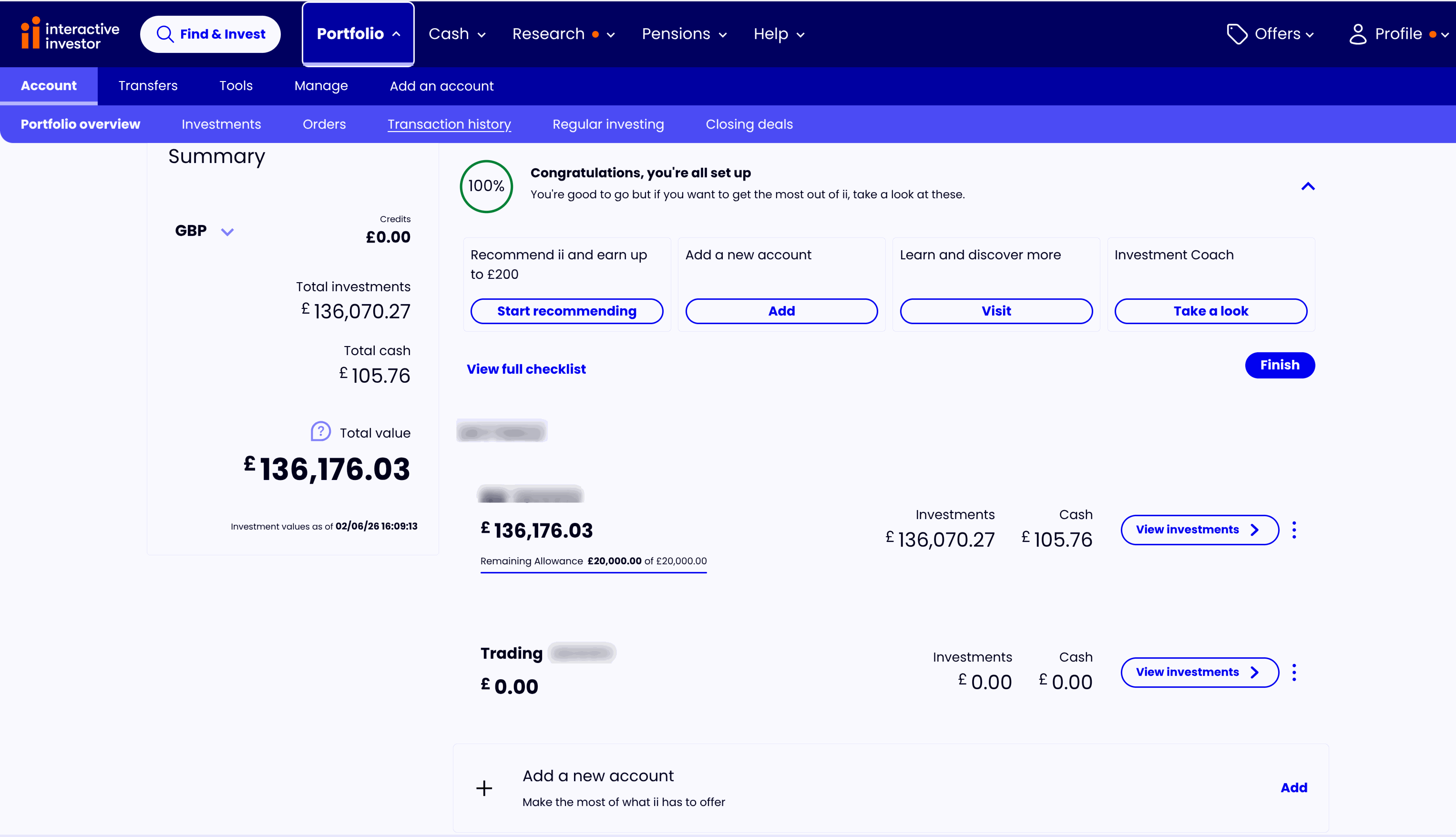
Open Transaction history
Sign in at ii.co.uk, open Portfolio in the top navigation, then choose Transaction history. If you hold more than one account, pick the one you want from the account selector.
Choose the time period
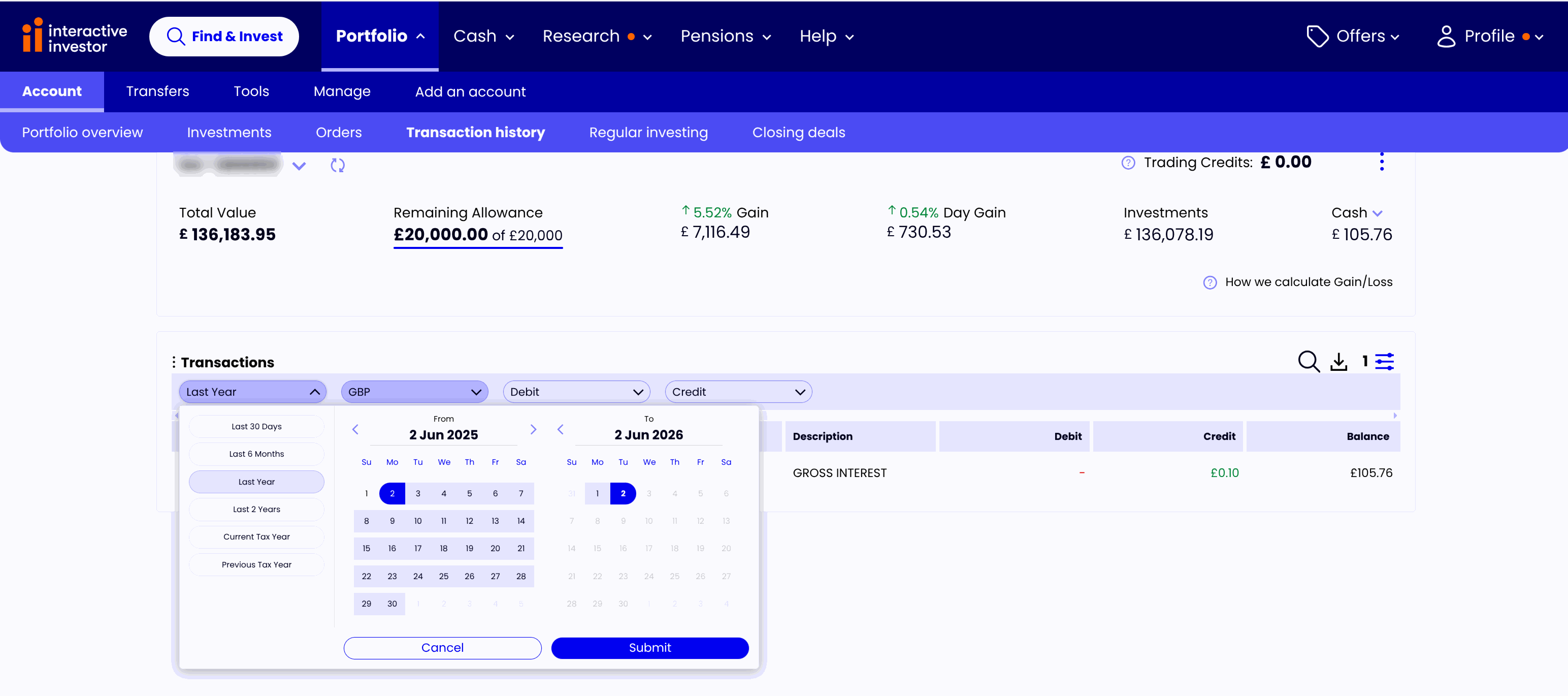
Above the Transactions table, open the period dropdown (it defaults to something like Last Year) and pick the widest range — or set a custom From–To on the calendar — then click Submit. For a first import you want your whole history.
Download as CSV
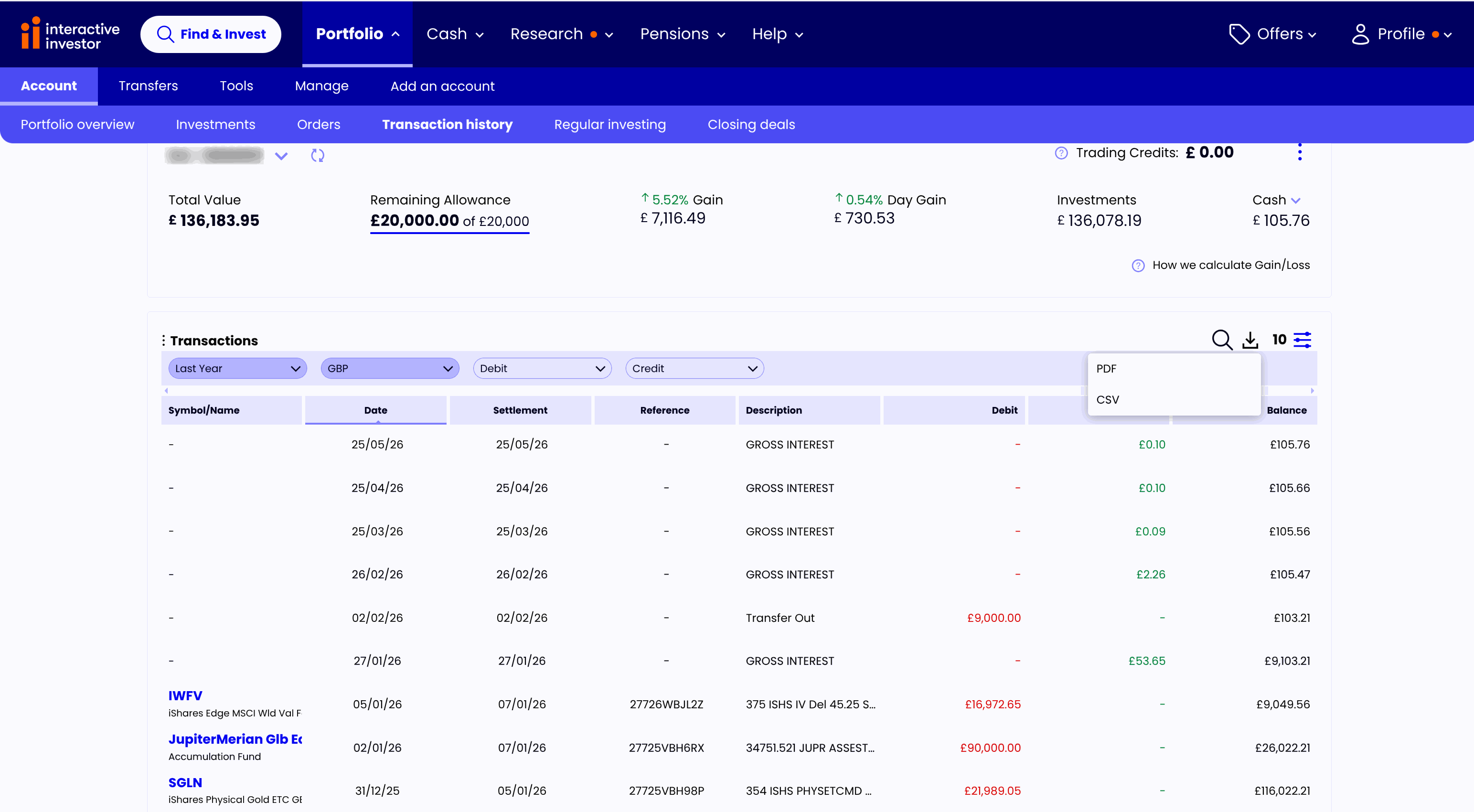
Click the download icon to the right of the table and choose CSV from the little menu.
⚠️ Pick CSV, not PDF. ARIA imports the CSV; the PDF statement can't be read.
Good to know
- Multiple accounts? Repeat for each (ISA, SIPP, Trading, Junior ISA) — you'll get one CSV per account. Upload each in ARIA and assign it to the right account.
- Transferred-in stock. ii doesn't always flag holdings moved in from another broker, so the original cost basis can be incomplete. Review the upload preview in ARIA and correct any prices before confirming.
- The CSV is your complete record. ii doesn't send per-trade confirmation emails, so don't rely on inbox forwarding — the export is the full picture.
Got your CSV?
Upload it to ARIA — we'll detect the format, resolve every ticker and build your portfolio analytics.